Does a Monitor Arm Really Save Space Compared to a Big Stand?
If you’ve ever set up a home office or a gaming station, the monitor stand vs arm debate likely crossed your mind. With so many tech accessories geared toward freeing up desk space, it’s tempting to assume that a monitor arm is the ultimate solution—especially if you have a small desk. But does a monitor arm really save space compared to a traditional big monitor stand? Let’s break this down with practical tips, measurements, and ergonomic insights.
Why Desk Space Matters: More Than Just Looks
Before diving into monitor stands and arms, it’s important to understand why desk space is essential. According to the Occupational Safety and Health Administration (OSHA), an ergonomic workstation isn’t just comfortable; it safeguards your health by preventing strain and injury over time.
When space is tight, whether in a tiny apartment office or a multipurpose living space, maximizing every inch of your desk can make or break your daily productivity and comfort. More desk space lets you:
- Keep documents, keyboards, and accessories within easy reach
- Maintain proper posture by allowing adequate chair clearance
- Avoid screen glare by positioning your monitors thoughtfully
Step 1: Measure Your Space and Obstacles Before Deciding
As someone who has spent nearly a decade fitting out office showrooms and home workstations, I never recommend picking desk accessories until you measure — and preferably sketch — your workspace.
Keep a tape measure handy (I always keep one in a drawer right next to my desk). The key measurements to record:
- Desk surface width and depth: Don’t just trust the manufacturer’s specs; measure the actual usable space, especially if your desk has a lip or a keyboard tray.
- Monitor size with stands: Check width and depth including monitor bases or mounts
- Distance from wall or window: Leaving clearance for cables and airflow
- Chair clearance space: Measure from desk edge to wall or furniture behind your chair
- Location of power outlets: Crucial for plugging in monitors without cable clutter
Once you have these measurements, draw a simple floor plan sketch. This doesn’t have to be fancy — a piece of paper with desk outline and monitor placement is enough. Mark outlet locations and any obstacles like door swings or radiators.
Desk Size Should Match Equipment and Activity
Choosing a desk that can accommodate your setup and work style is the foundation of ergonomic success. Too often, I see people buying a huge monitor, single or dual, and plunking it on a desk that barely fits its stand.
With the rise of online gaming platforms like mrq.com, where users might want multiple displays or accessories for streaming, the temptation is high to go big. But are you really getting the most out of your desk space?
- Match desk size to equipment: For example, desks 47 inches wide or less require more compact monitor solutions to keep space free for keyboards and mouse.
- Consider activity: Writing, dual-monitor Excel work, or gaming setups have different space needs. Being honest about your main tasks helps guide monitor and desk choices.
Chair Clearance: The Make-or-Break Measurement
This is where many setups fail. You might have the perfect-sized desk and a compact monitor arm, but if there’s not enough clearance behind or beneath your desk for your chair, you’ll never be comfortable.
OSHA recommends about 20 to 24 inches of knee clearance for seated work. If your monitor stand or a large base gum up that space, you’re compromising your posture and movement.
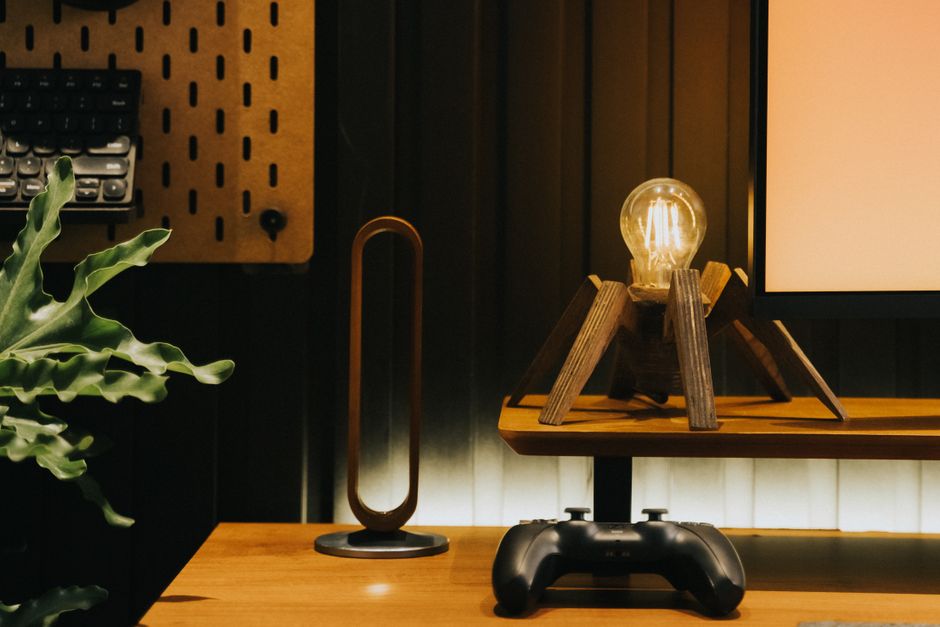
Quick tip: After measuring your desk and chair, simulate the chair pull-back distance before installing any monitor hardware. Blocking door swings or restricting your ability to scoot under the desk is the #1 pet peeve I spot in "space-saving" setups.
Monitor Size vs Real Width and Height
A monitor’s labeled size is usually the diagonal measurement of the screen, but real-world width and height — plus stand footprint — are what impact your desk space.

Notice how a larger monitor takes up more desk depth, especially with a wide base. This pushes your keyboard and mouse forward or to the sides, shrinking usable space.
Monitor Stand vs Arm: Space Saving Pros and Cons
Traditional Monitor Stand
- Pros: Usually the cheapest option; stable; easy to set up
- Cons: Bulky base eats desk depth and width; fixed height and angle limit ergonomic adjustments; risk of blocking chair pull-back space if large
Monitor Arm
- Pros: Frees desk space beneath the monitor by clamping or grommet mounting; highly adjustable height, tilt, and swivel; creates a clean, minimal look
- Cons: Installation requires desk compatibility; arms with heavier monitors can wobble if not properly supported; cables need clever management
From my experience fitting out diverse spaces, a monitor arm for a small desk can truly free up desk space — but only if your desk size, monitor weight, and workspace are compatible with the arm’s specs.
Practical Tips: How to Decide and Make It Work
- Measure Everything First: Use your tape measure! Measure desk surface, monitor dimensions (including stand), chair clearance, and outlet locations.
- Sketch a Simple Floor Plan: Mark out your desk, monitor footprint, chair pull-back range, and outlet position. This visual helps spot cramped spaces before buying gear.
- Prioritize Chair Clearance: Ensure your chair can move naturally without bumping or scraping. Never sacrifice ergonomic movement for slightly more desk surface.
- Consider Monitor Size and Usage: If your daily tasks don’t require a 32-inch screen, consider downsizing. Smaller monitors fit more easily on arms and leave desk space free for keyboards and notes.
- Check Desk Compatibility with Monitor Arms: Not all desks accommodate clamp or grommet mounts. Desk thickness and edge design matter.
- Practice Cable Management: Monitor arms help reduce clutter, but cables must still be routed safely and accessibly.
Final Thoughts: When Does a Monitor Arm Save the Most Space?
A monitor arm excels at freeing up desk space when you have:
- A small to medium desk size (typically less than 55 inches wide)
- Moderately sized monitors (24 to 27 inches works best)
- A desk edge or surface compatible with arm mounting
- A setup that values ergonomic adjustability and clear chair clearance
If your desk is large and already offers plenty of depth, or you prefer a minimal adjustment monitor, a traditional stand may still serve. But for tight spaces — especially apartments or multifunctional rooms that double as gaming nooks or work-from-home stations — the right monitor arm can transform your experience.
Don’t rush. Step back with your tape measure and simple floor plan sketch to see how much "free desk space" you genuinely have before and after adding that monitor arm. Trust me: addressing the real dimensions thoughtfully beats picking flashy gadgets that don’t fit your workflow.
For more ergonomic and space-saving tips, keep in mind the guidelines from organizations like OSHA, and always prioritize your own comfort inchesguide.com and usability. Whether you’re streaming games on mrq.com or crunching spreadsheets, smart space planning goes a long way toward productive, healthy workdays.